DiskFrontier
Disk space — the final frontier.
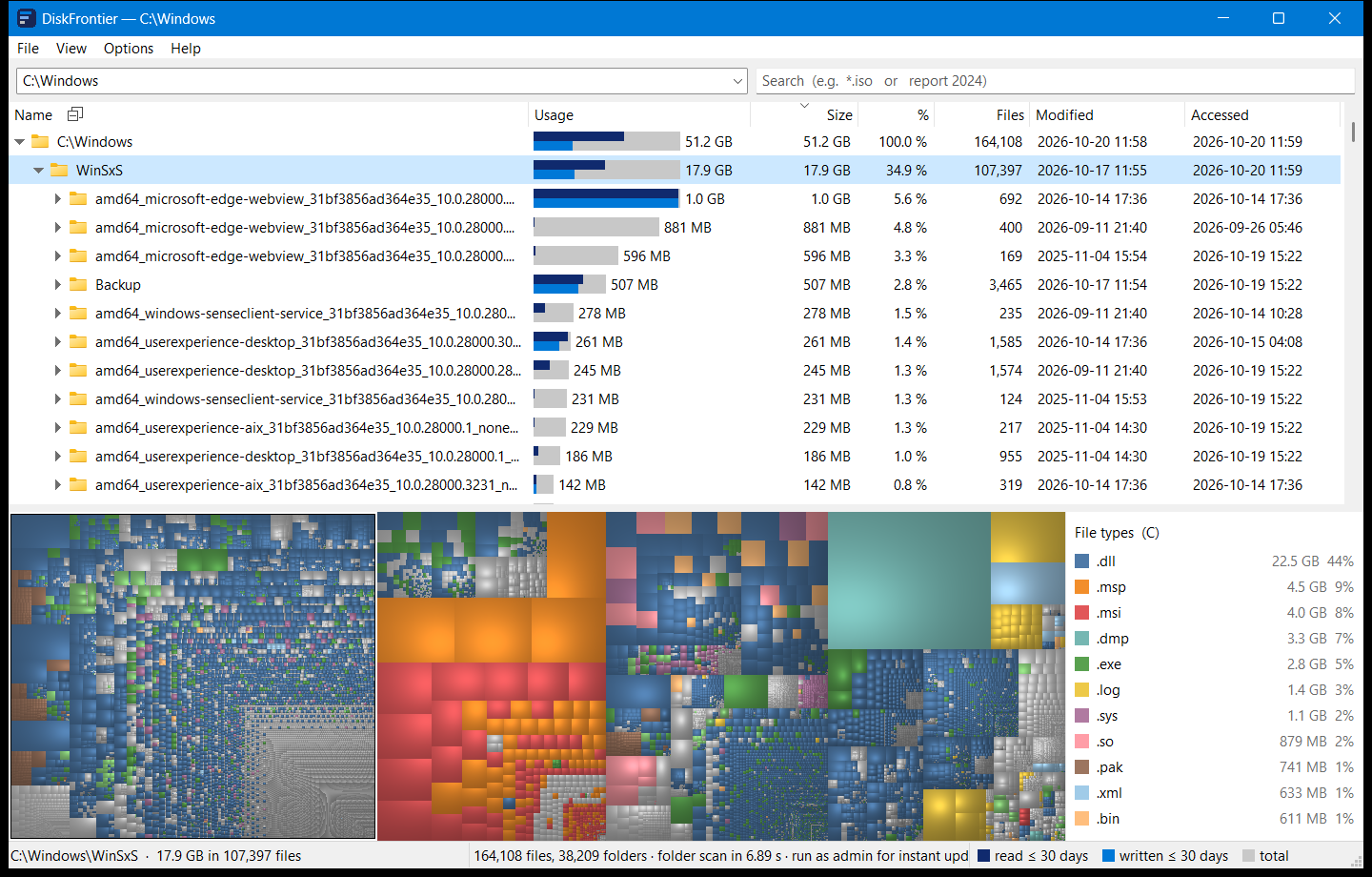
A fast, minimalist disk usage explorer for Windows. See at a glance what is filling your drive, and which of it you have actually read or changed lately.
First run: DiskFrontier is not code-signed yet, so Windows shows “Windows protected your PC” the first time. Click More info, then Run anyway. Or right-click the downloaded file → Properties → tick Unblock → OK.
What it does
- Whole drives in secondsRun as administrator, it reads the NTFS master file table directly — over a million files in a few seconds. Without admin rights it scans folders in parallel.
- Instant start, always currentIt remembers the last scan and, when elevated, follows the NTFS change journal, so the view stays up to date while it is open. A one-time option lets it start elevated without a UAC prompt.
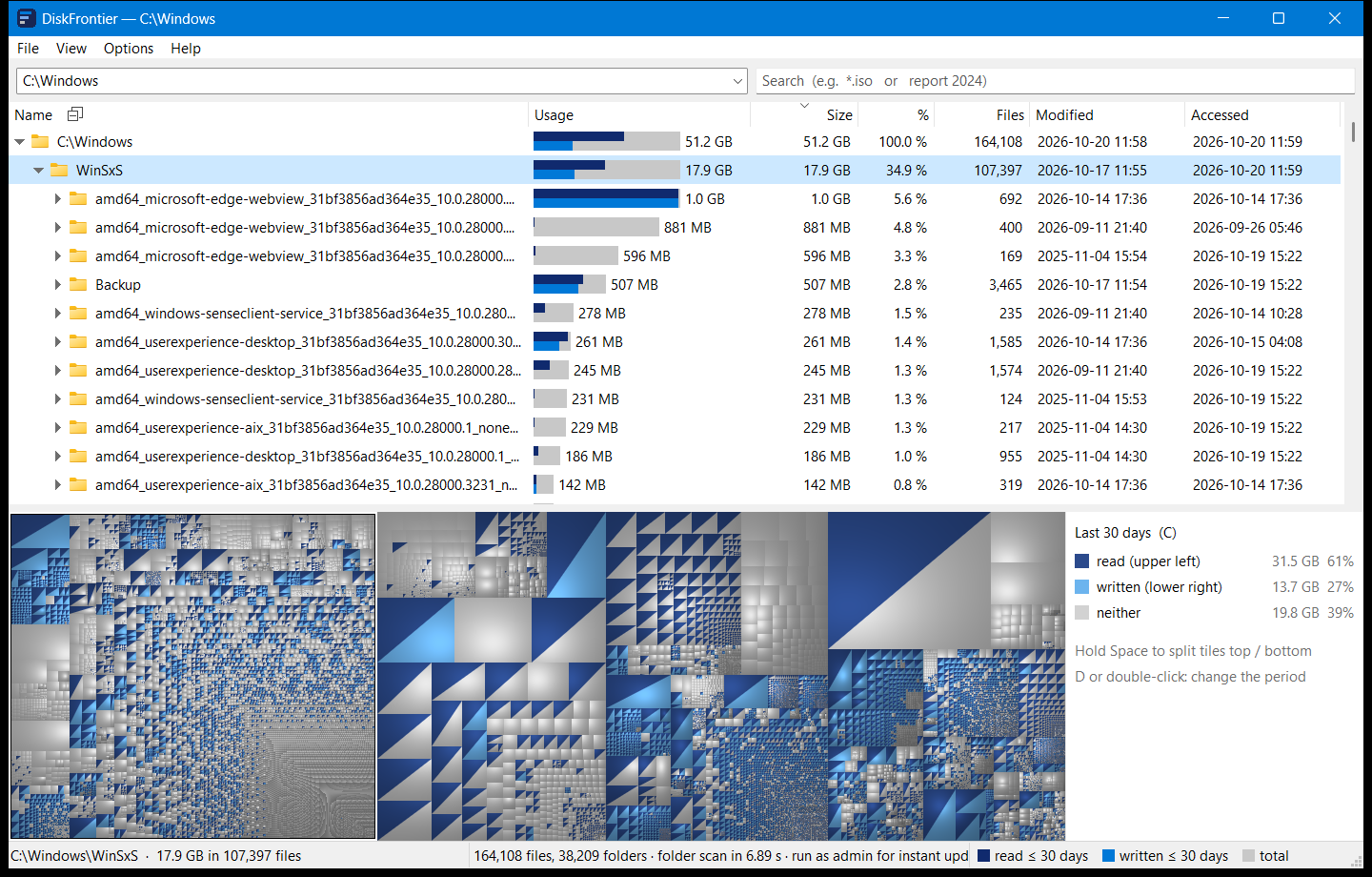
- Usage bars that show activityEach bar is the item’s size in gray, with the share read recently along the top and the share written recently along the bottom — 1 day, a week, a month, a year, or any number of days you choose.
- Tree or flat listPress L to switch between the folder tree, a flat Everything-style list of every file and folder, and a list of files only — biggest first, filtered as you type.
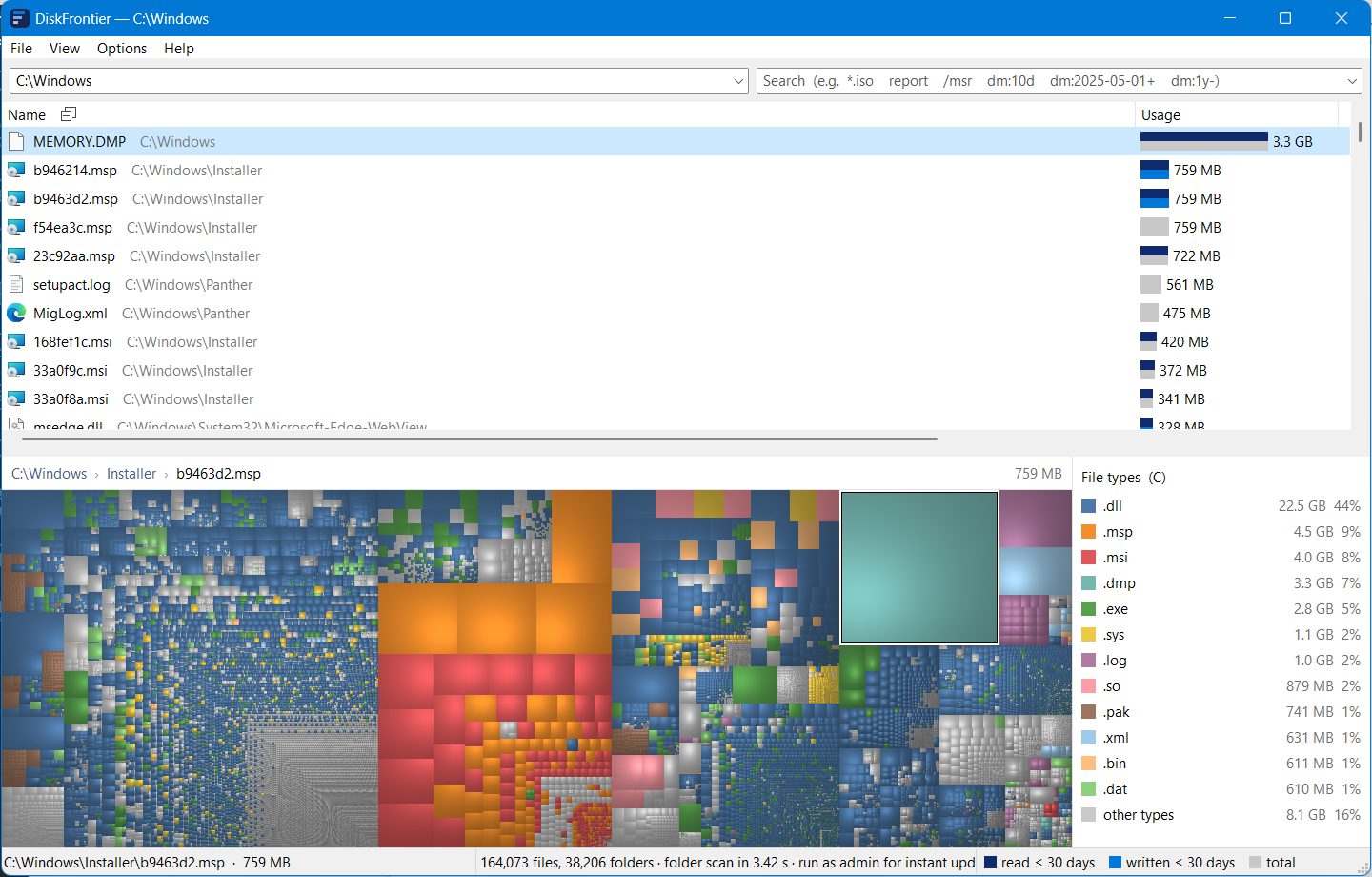
- Search as you typeFind files anywhere on the scanned drive instantly, largest first.
*and?wildcards work, a term starting with/matches part of the path (/projects/2024), and recent searches are kept in a dropdown. - Search by date and hourAdd
dm:(modified) orda:(accessed):dm:3hfor the last three hours,dm:10d,dm:2025, a single hour likedm:2026-06-03-14, or a range such asdm:2024-01-01..2024-03-31. Add+or-for after or before:dm:1y-finds files untouched for a year. Or pick the dates from a calendar. - Cushion treemapAn optional treemap in the style of WinDirStat, colored by file type, by recent activity, or by activity fading with age. A breadcrumb bar shows the path to the tile under the mouse, and the folders around it are outlined.
- Fits into Windows“Analyze with DiskFrontier” in Explorer’s right-click menu, drag and drop, delete to the Recycle Bin, and your recent folders in the path box.
Keys
| Ctrl+R or F5 | Refresh (add Shift for a full rescan) |
| L or F6 | Next view: tree, list of files and folders, list of files only |
| Space | Expand or collapse the selected folder |
| T or F9 | Show or hide the treemap |
| C or F8 | Treemap colors: file type, activity, activity fading with age |
| Hold Space | Split activity tiles the other way (diagonal or top / bottom) |
| D | Choose the activity period (or double-click the legend) |
| N or F7 | Numbers on the usage bars |
| Ctrl+F | Search |
| Ctrl+D | Search by date, using a calendar |
| Del | Delete to the Recycle Bin |
Since 1996
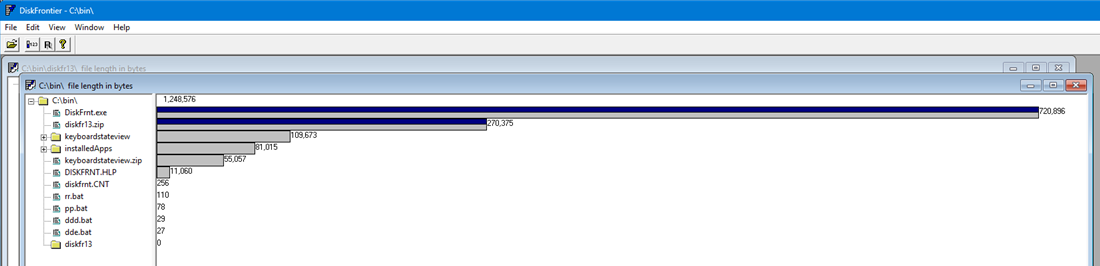
The first DiskFrontier was a Windows 95 shareware disk usage logger: a folder tree beside a bar graph, with the bars marked by what had been read or written in the last 30 days. DiskFrontier 2 keeps that idea and rebuilds everything around it for today’s drives — millions of files instead of thousands, read in seconds.